
Git Versional Control Notes
For those of you rushing to learn git version control, maybe because you're at a hackathon or you're just confused about the material online, here is a quick cheat sheet into the topic.
Git Version Control Overview
Here is a high-level overview of how git and git providers work.
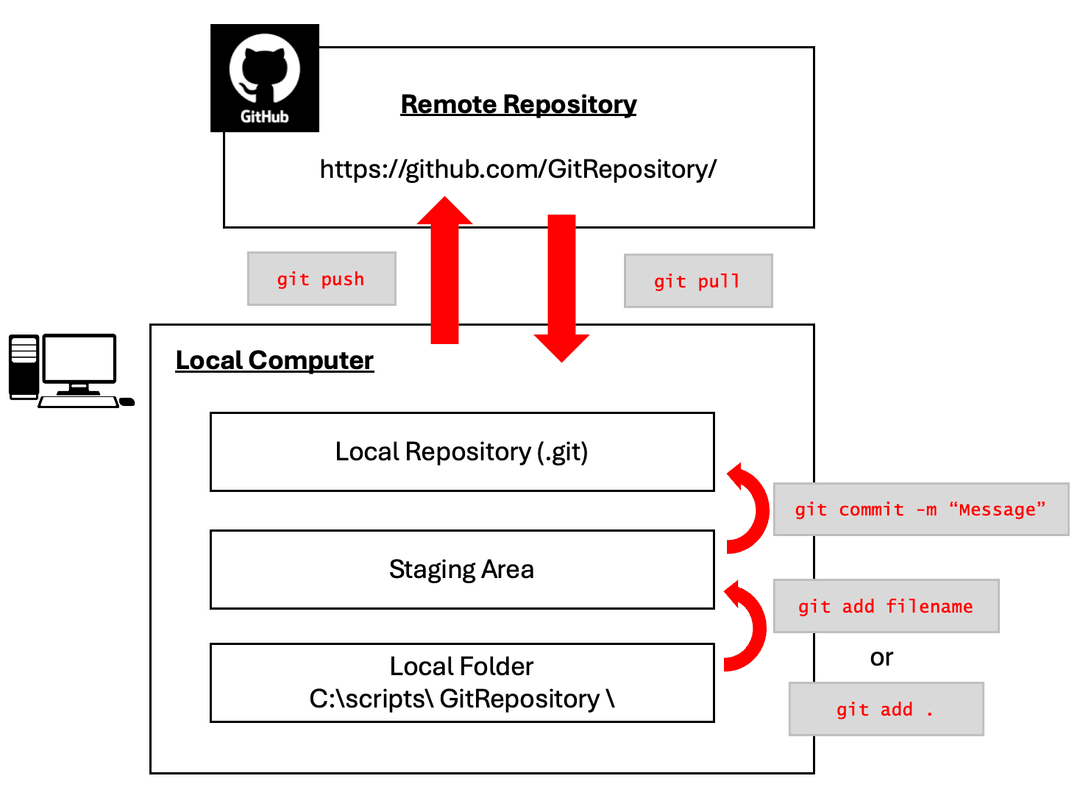
Git
Git is a version control system (VCS) that you can download onto your local device to help you keep track of changes in your code. To make this all easy, let's say you're building a project in a hackathon. To make it easy to follow, we'll navigate this by setting up possible scenarios.
Scenario 1: You are editing your code but you break something...
Imagine you were typing away on your code, then you suddenly break something. If you didn't use Git, you wouldn't have a previous "version" of your code to revert to. This is a problem. But luckily, this is where Git can be really helpful. Git is a software that runs locally on your device, and allows you to keep multiple versions of your code, as long as you are "commiting" it to your local repository.
The best way you can avoid this is by following the steps below:
- Staging your changes in the Staging Area.
This can be achieved by either running
git add .(which stages all the changes you've made) or by runninggit add filenamewithfilenamebeing replaced with the actual name of the file. - Commiting your changes to the Local Repository.
Then you must actually commit those changes currently sitting in the staging area into the local repository by running
git commit -m "Include commit message here". It's here you will find all the "snapshots" or "versions" of codes/files you have committed.
Scenario 2: You and your hackathon teammate have made your own changes without consulting each other, so now you have two different versions of the code...
This is a common issue you will run into when you are working on the same code with multiple other programmers. Thus, we have git providers, like GitHub, that allow us to push the versions we committed to our local repositories to remote repositories so other people can pull the most updated version (with all the changes you've made) and thus contribute further to the code. To no surprise, the commands to push and pull versions to and from a remote repository aregit push and git pull, respectively. This way, when you've made pushes to the project, you can git push your changes from your local repository to the remote repository (your team's repo), and subsequently your team members cangit pull your latest changes so they can build off the most up-to-date verion of your project.
Centralized vs Distributed Version Control
Now that you understand the basics, you may be wondering, "How is this any different than Google Drive, One Drive, etc?" Great question! The "drives" that we're used to working with like Google Drive, OneDrive, Dropbox, are all Centralized Version Control (CVC). The CVC only saves the latest version of your file. It does not save any of the history or snapshots. Whereas with Distributed Version Control (DVC), not only do you get the latest version, but you also get all the snapshots/history associated with that file. This means that when you are pulling a file from the central server (eg GitHub), you are pulling all the latest version of that file along with all its history.